

VPN Management & Access
Overview
Section titled “Overview”VPN management is restricted to administrative users. By default, the ARROW platform automatically assigns users, devices, and virtual machines to their appropriate groups, with predefined policies in place to govern traffic and access. There are two primary methods for connecting to the VPN:
- Identity Provider (IDP) Authentication: Reserved for end-user workstations.
- Setup Token: Reserved for ARROW devices, virtual machines, and servers (e.g., shadowsocks-proxy). These systems are placed under restrictive firewall policies and cannot communicate with other devices.
DO NOT USE SETUP TOKENS ON USER DEVICES
Doing so will isolate the host under a restrictive policy, and you WILL NOT be able to access any other systems on the VPN.
VPN Access - Users (GUI)
Section titled “VPN Access - Users (GUI)”To connect to the VPN for the first time, log in to the ARROW Portal using your organization’s IDP. Once logged in, navigate to the VPN page and open the displayed VPN API address in a new browser tab. Since you are already authenticated in the ARROW Portal, the page will provide download and setup instructions.
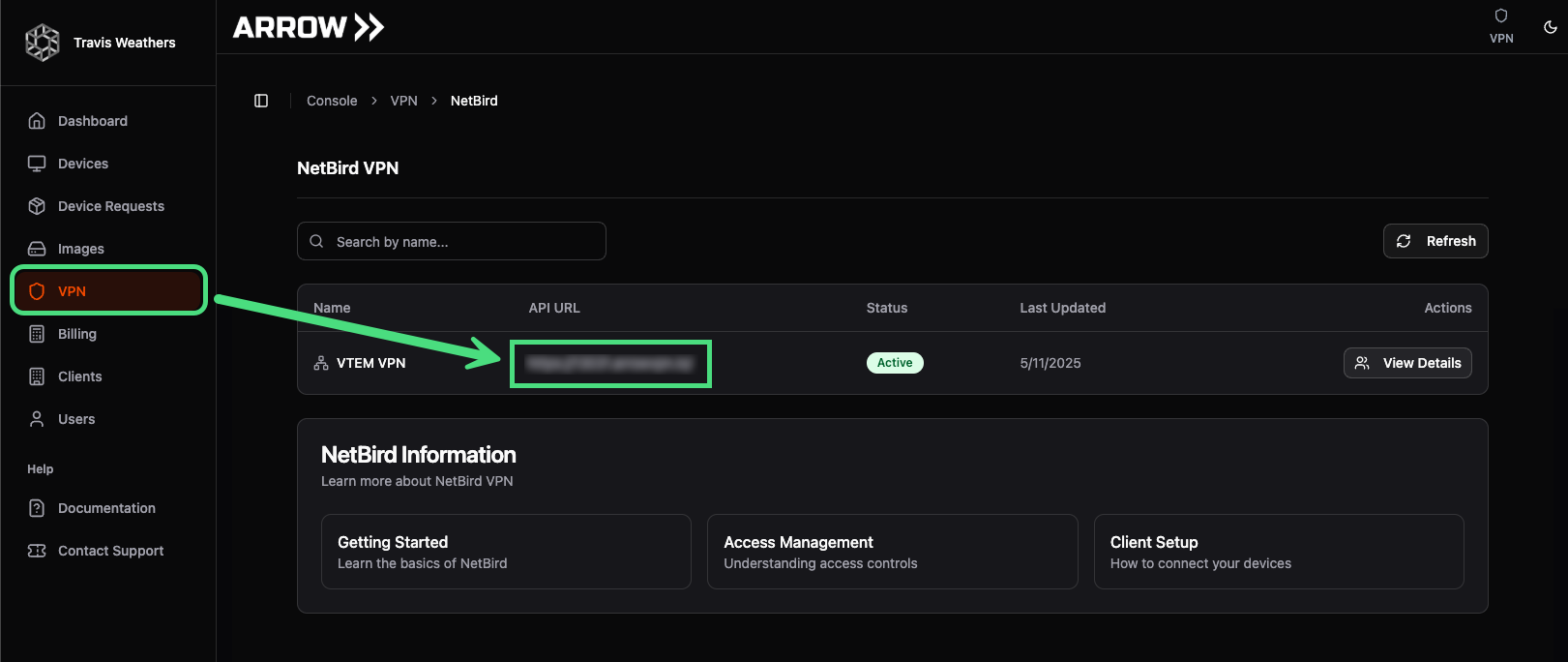 Identifying the VPN Orchestrator URL
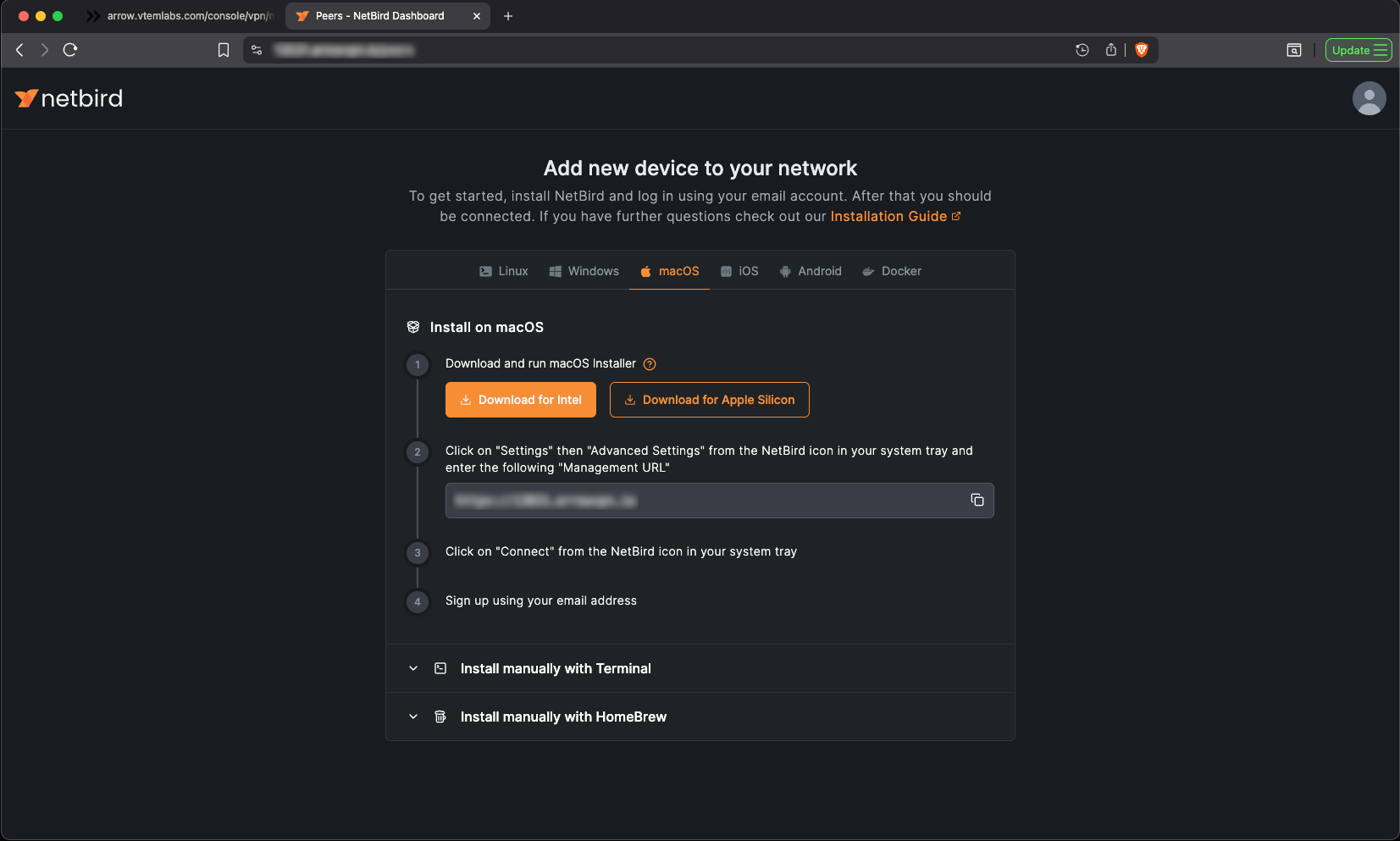 Installing the Netbird VPN Client
Once Netbird is installed, right click the Netbird try icon and select Advanced Settings and set the Management URL.
- Management URL:
https://{your-domain}:443/
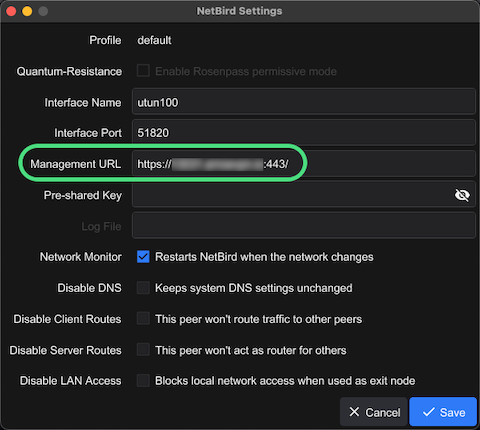 Management URL Configuration
VPN Access - Users (CLI)
Section titled “VPN Access - Users (CLI)”To log into a user account from a Linux system using the command line, follow these instructions. First, capture your organization’s Management URL, which is stored in the ARROW Portal on the VPN page as the API URL. Navigate to this URL to view installation instructions (see reference illustrations above). Full Linux installation instructions can also be found here. For a quick one-liner:
# Install Netbird via the CLI one-linercurl -fsSL https://pkgs.netbird.io/install.sh | shTo bring Netbird online as a user, run the following command.
netbird up --management-url https://{your-domain}:443/This should automatically launch your browser if you have a GUI. If you’re remotely accessing the Linux system, copy and paste the provided URL to authenticate.
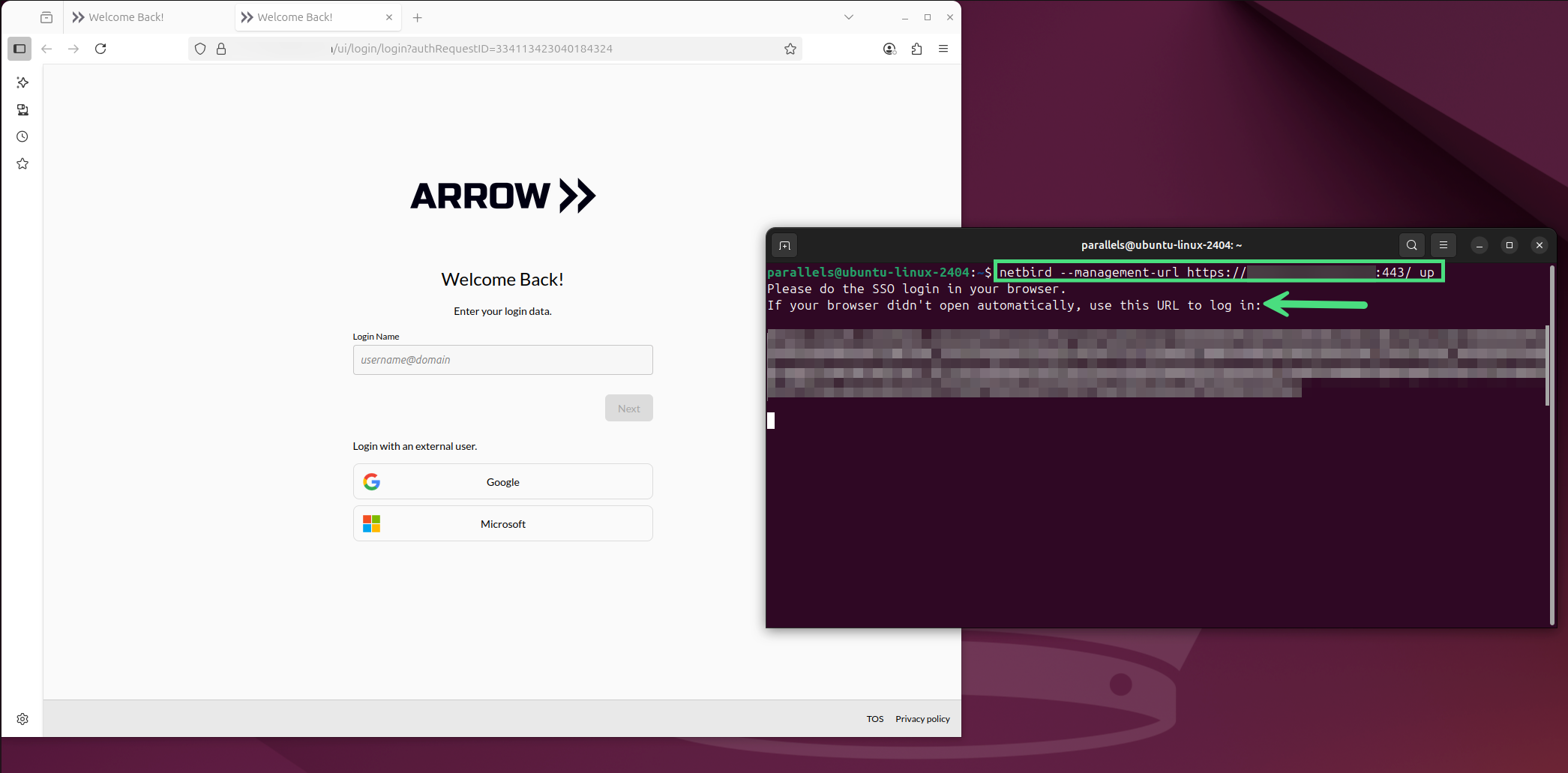 VPN User Connection CLI
VPN Access - Servers
Section titled “VPN Access - Servers”Adding custom devices (e.g., password recovery servers) to your VPN is straightforward, but requires administrator access within your organization. Log in to the Management URL (see sections above), navigate to the Setup Keys page, and click Create Setup Key. This will open the Create New Setup Key window. Provide the required information, then click Create Setup Key. In the example below, we’re adding a password recovery server.
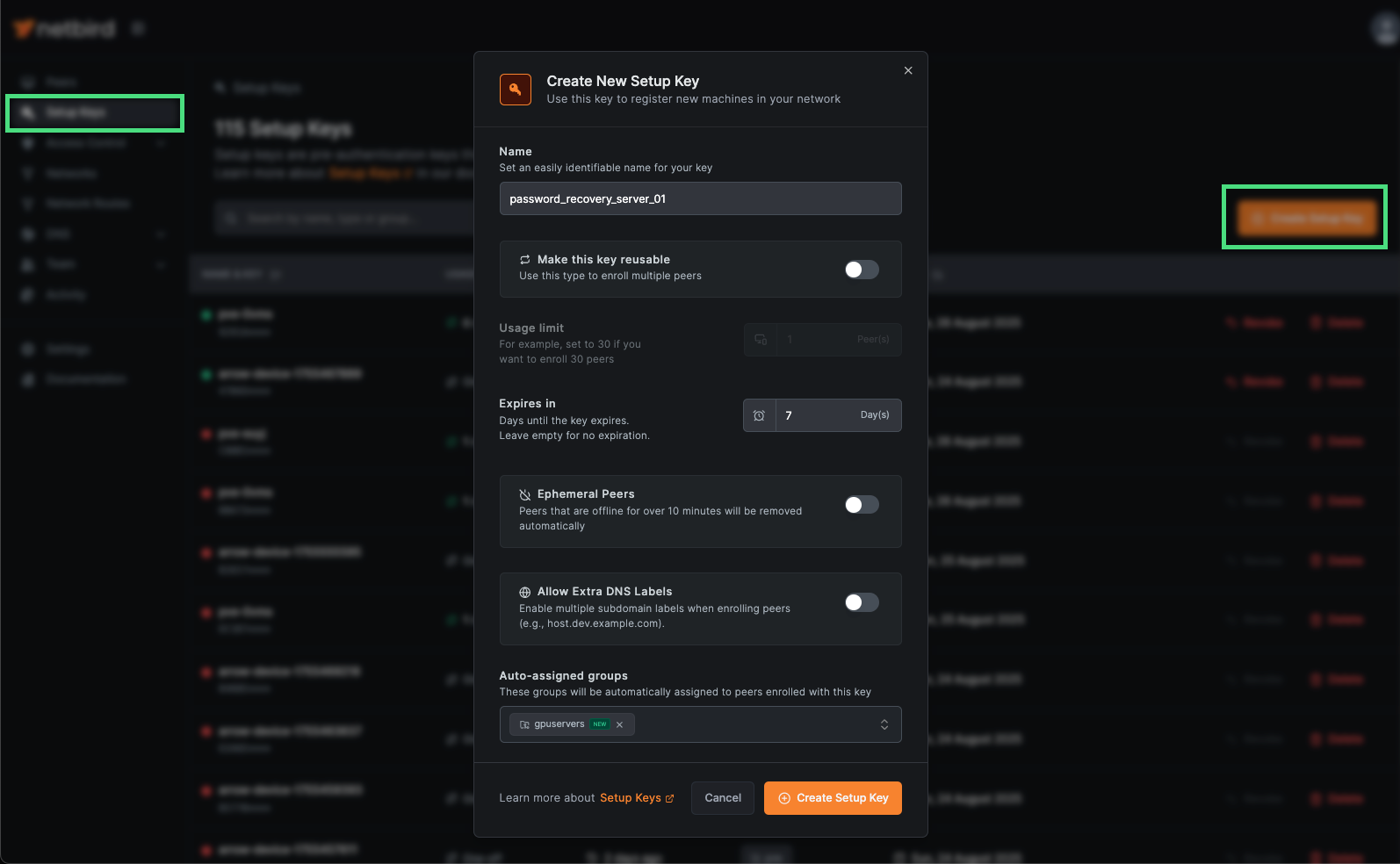 Netbird Setup Key Request
To add the server to the VPN, we recommend running the following command. Optionally, you can add the --disable-dns flag to prevent Netbird from overwriting your /etc/resolv.conf file:
netbird up --management-url https://{your-domain}:443/ --setup-key XXXXXXX-XXXX-XXXX-XXXX-XXXXXXXXXX --hostname {uniquename} --allow-server-sshOnce you see the Connected message, you must add Access Control Policies to enable access to your device(s).
Groups & Access Control Policies
Section titled “Groups & Access Control Policies”Groups
Section titled “Groups”VTEM Labs configures the following groups in each client’s VPN console. These groups must not be modified, though you may add additional groups if needed.
| Group | Description |
|---|---|
| users | This group is defined for users that are on-boarded in the system. This applies to all user workstations and local testing environments that will have access to ARROW devices and virtual machines. |
| pve | This group consists of physical ARROW devices (Proxmox Virtual Environment). |
| pvm | This group consists of ARROW virtual machines that run on physical hardware (Proxmox Virtual Machine). |
| vm | This group consists of virtual appliances that run on client environments (e.g., VMware, VirtualBox, etc.) |
| socks | This group is reserved for your shadowsocks proxy server. |
Access Control Policies
Section titled “Access Control Policies”Access Control Policies define network traffic rules and specify which groups can communicate within your VPN infrastructure. These policies regulate the flow of data between device types and user groups. ARROW includes several pre-configured policies to enforce secure communication.
| Policy Name | Sources | Direction | Destination | Protocol | Ports | Purpose |
|---|---|---|---|---|---|---|
| users-to-infrastructure-udp | users | → | pve, pvm, vm | UDP | ALL | Allow users UDP access to infrastructure devices |
| users-to-infrastructure-tcp | users | → | pve, pvm, vm | TCP | ALL | Allow users TCP access to infrastructure devices |
| Socks ICMP | users, pve, pvm, vm | ↔ | socks | ICMP | ALL | Enable ICMP connectivity for SOCKS proxy services |
| socks-udp | pve, pvm, vm | → | socks | UDP | 8388 | Allow UDP access to SOCKS servers on port 8388 |
| socks-tcp | pve, pvm, vm | → | socks | TCP | 8388 | Allow TCP access to SOCKS servers on port 8388 |
| VPN Health Check | users, pve, pvm, vm | → | socks | TCP | 443 | Enable VPN connectivity health monitoring |
NOTE
Altering the above policies will break your VPN and negatively impact users and devices. Reconfiguration and troubleshooting will require a Change Order based on the time and effort needed to diagnose and repair any user-induced issues. Self-induced outages are not covered under the standard SLA and will be addressed at our earliest availability.
Managing Policies
Section titled “Managing Policies”If you plan to add additional infrastructure to your VPN, you must first complete an internal planning and approval process. We recommend using the Netbird application directly to generate setup tokens, create new groups, and configure corresponding policies. Note that adding additional services is not supported in the ARROW platform (e.g., newly added devices will not appear as cards in the dashboard). However, these devices will be visible in the View Details → Peers section of the VPN page within the ARROW Portal.
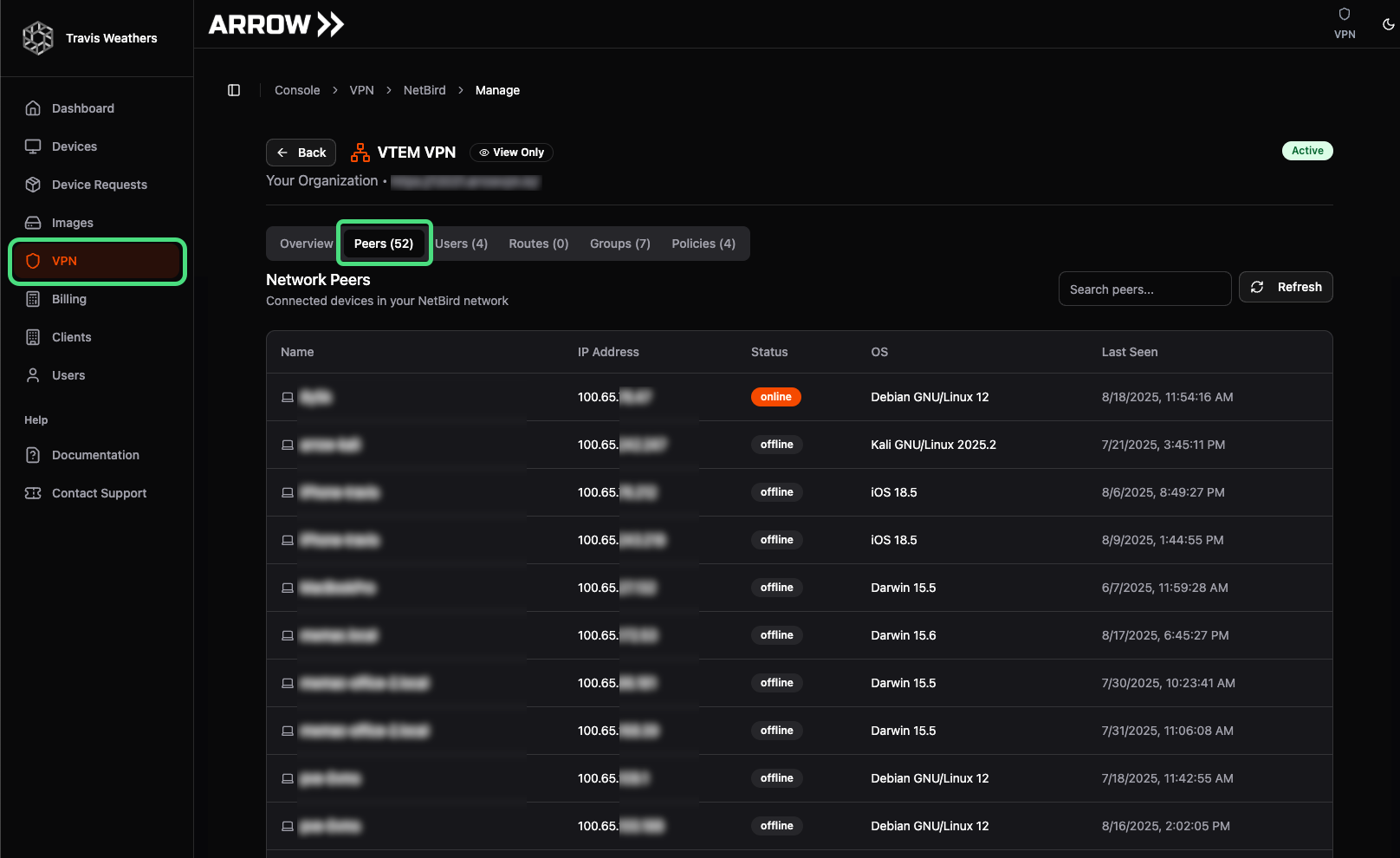 VPN Peers View
Adding New Policies
Section titled “Adding New Policies”To add a new Access Control Policy, navigate to the Policies page under Access Control and click the Add Policy button. This opens the Create New Access Control Policy dialog window. In the example below, a new group called gpuservers has been created and a server added to the VPN. The policy provides one-way SSH access from the users, pvm, and vm groups to the gpuservers, enabling the transfer of recovered hashed credentials and execution of password recovery operations.
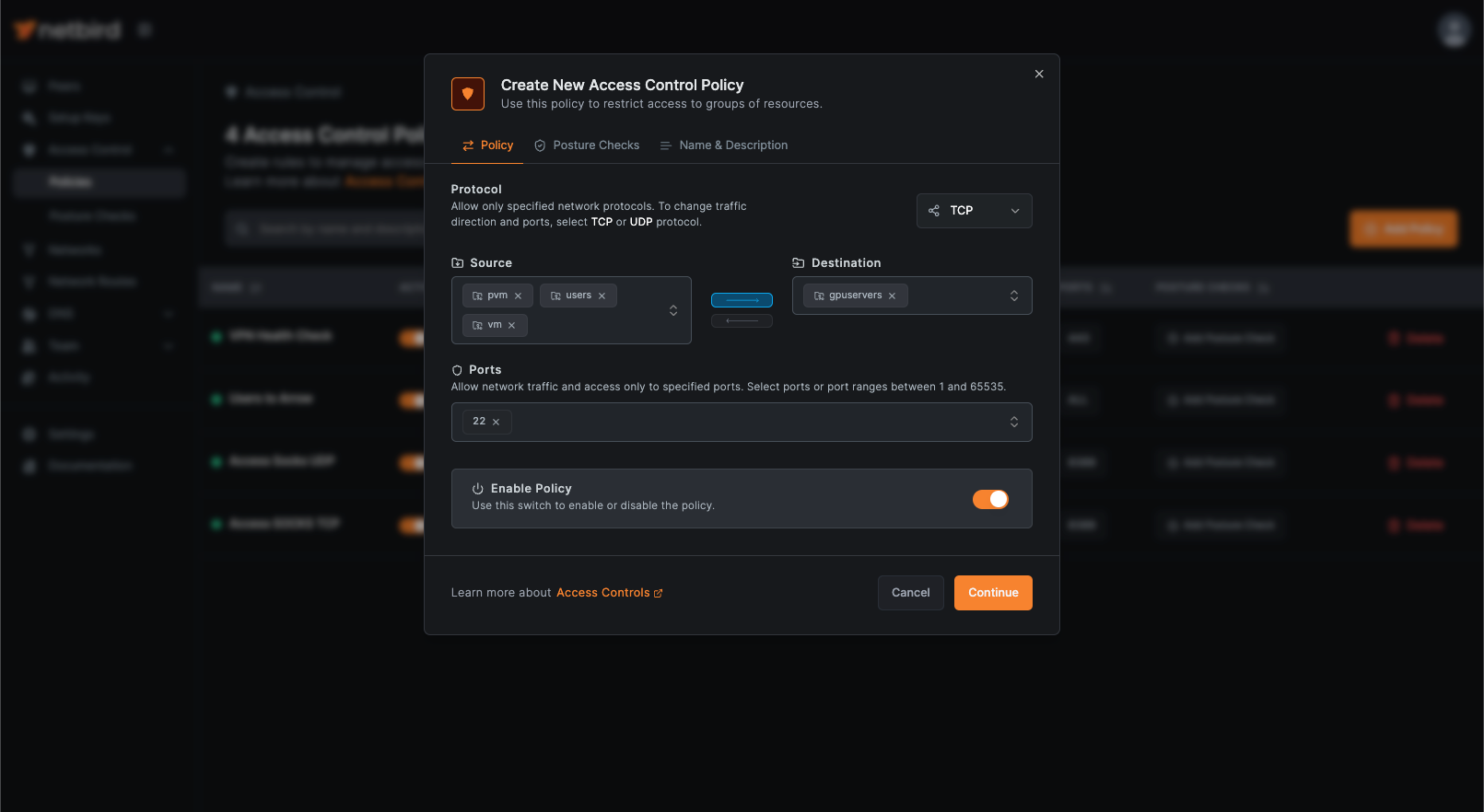 Create an Access Control Policy