

User Management
Overview
Section titled “Overview”User management in ARROW is straightforward. Roles are broken into three categories:
- Admin: We recommend assigning this role only to practice leadership (e.g., Practice Director(s), Practice Manager(s), etc.).
- Manager: This role is ideal for Project Management staff or anyone responsible for adding clients or requesting devices. We do not recommend assigning individual contributors as managers to reduce the possibility of duplicate device requests.
- User: This role is suited for team members who will utilize ARROW in a technical delivery capacity. They will maintain administrative rights over physical devices and virtual deployments but will not have access to billing information, invoices, device requests, etc.
Permission Hierarchy Summary
Section titled “Permission Hierarchy Summary”The table below provides a brief overview of ARROW’s role-based access control (RBAC) structure.
| Capability | Admin | Manager | User |
|---|---|---|---|
| User Management | ✅ Full | ❌ None | ❌ None |
| Role Management | ✅ Full | ❌ None | ❌ None |
| Client Creation | ✅ Yes | ✅ Yes | ❌ Read-only |
| Client Management | ✅ Yes | ✅ Yes | ❌ Read-only |
| Device Request Creation | ✅ Yes | ✅ Yes | ❌ Read-only |
| Device Access | ✅ All | ✅ All | ✅ All |
Adding Users to ARROW
Section titled “Adding Users to ARROW”To add users in ARROW, click Users in the sidebar, then click the + Add User button.
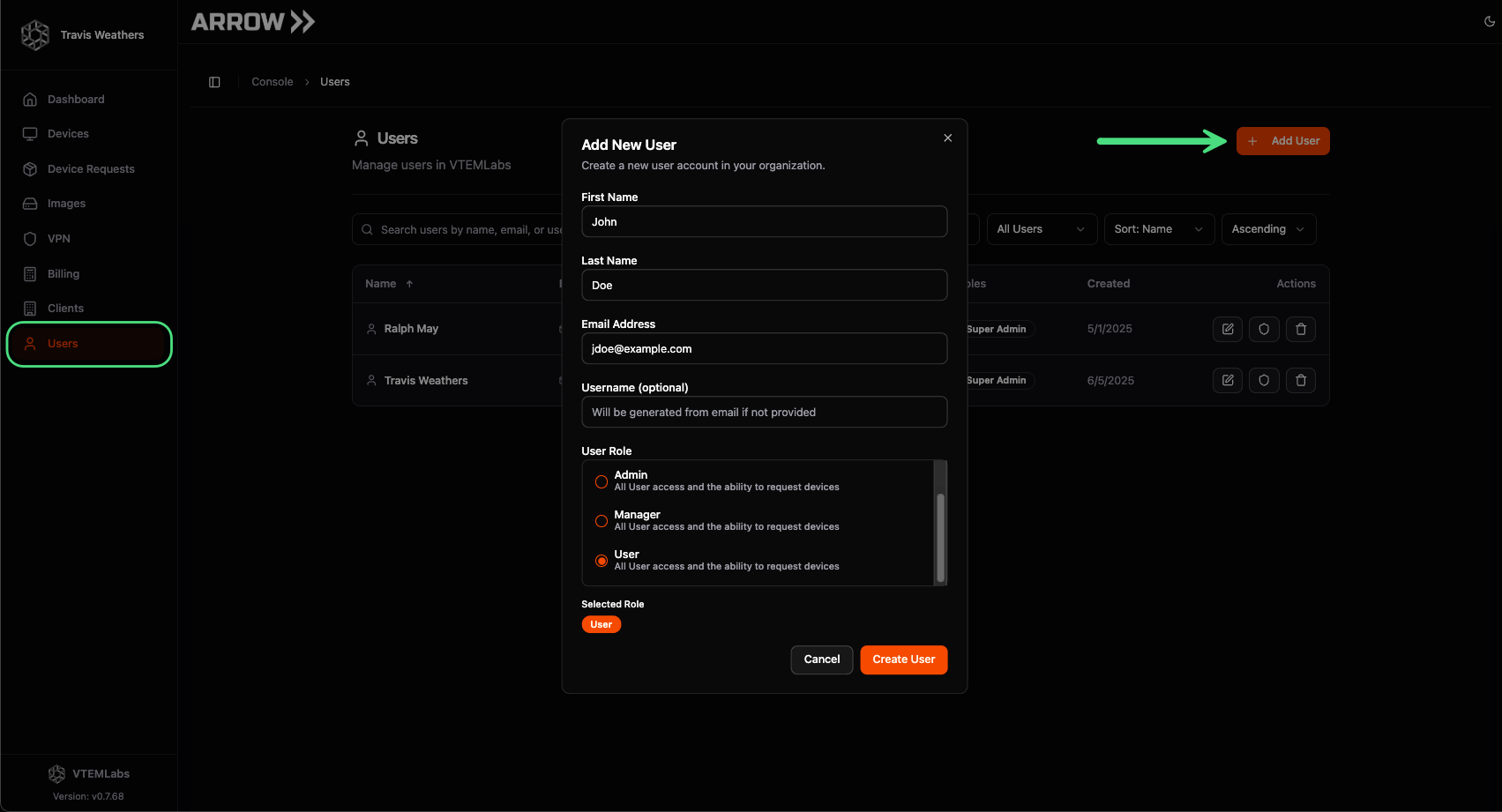 Adding a user to ARROW
Removing Users from ARROW
Section titled “Removing Users from ARROW”You can immediately kill access to any user in ARROW and your VPN by terminating their account within your IDP (e.g., Google, o365, Okta, etc.). However, you will still need to delete their account from the ARROW portal. To do this, click Users in the sidebar, then click the Trash Can button in the table next to the desired user.
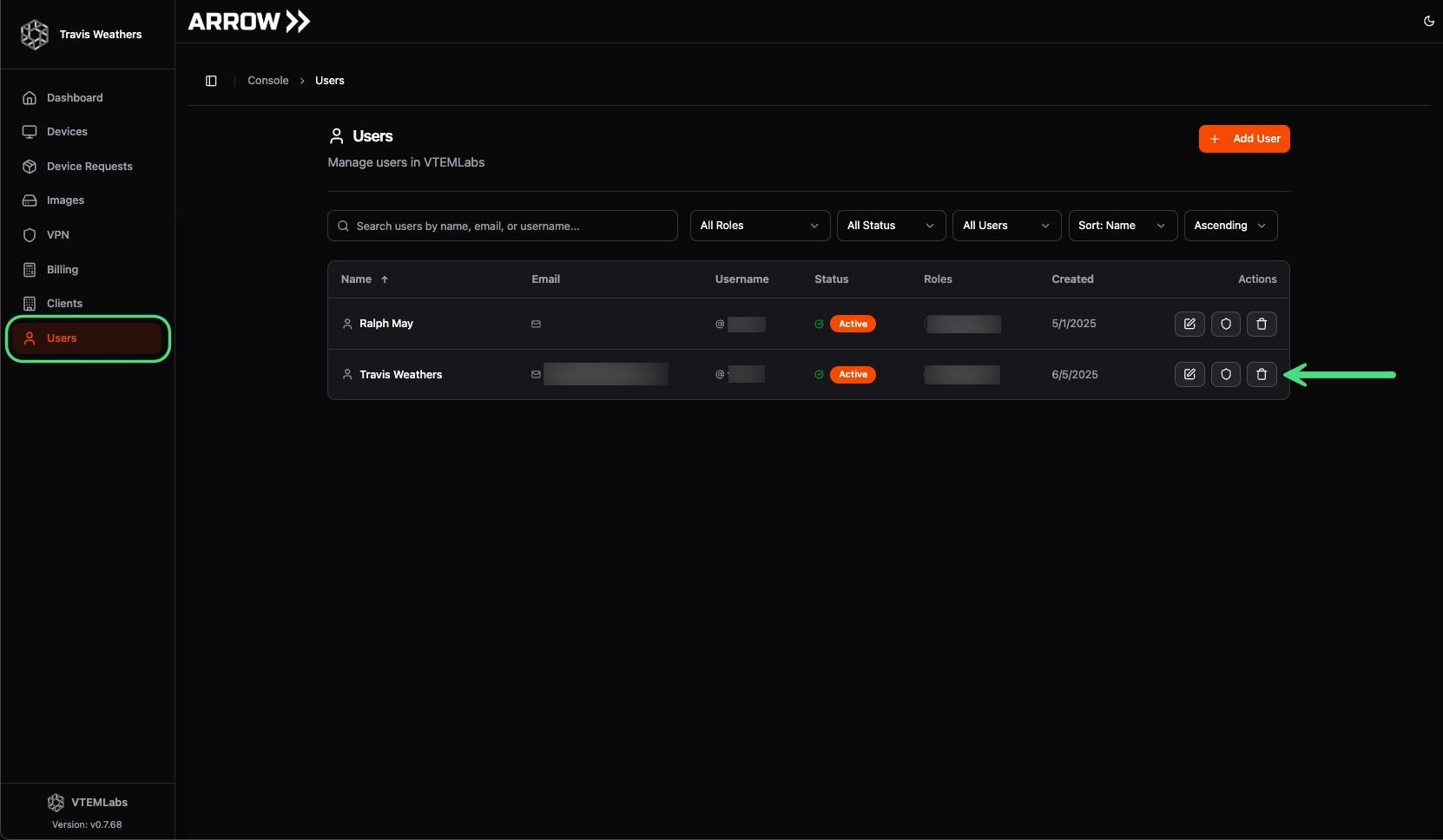 Removing a user from ARROW