

Device Management
Overview
Section titled “Overview”Manage your organization’s device inventory, configurations, and lifecycle processes through ARROW’s comprehensive device management platform.
ARROW Portal - Devices
Section titled “ARROW Portal - Devices”Once a device is provisioned, it will show up within the Devices page of the ARROW Portal. The default view places each device in a card-style layout. This can be changed to list view by selecting the List View Icon. The Devices page displays comprehensive information organized from the upper left downwards:
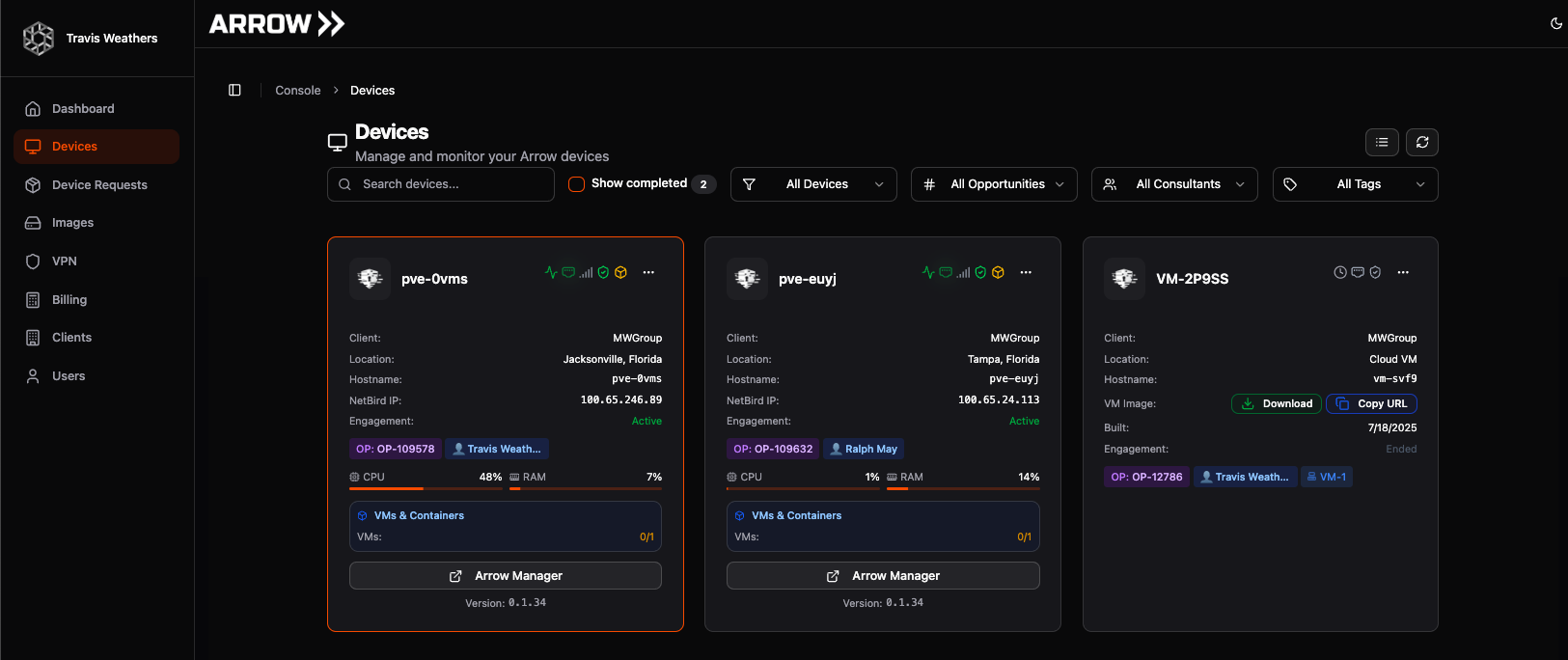 Devices Card View
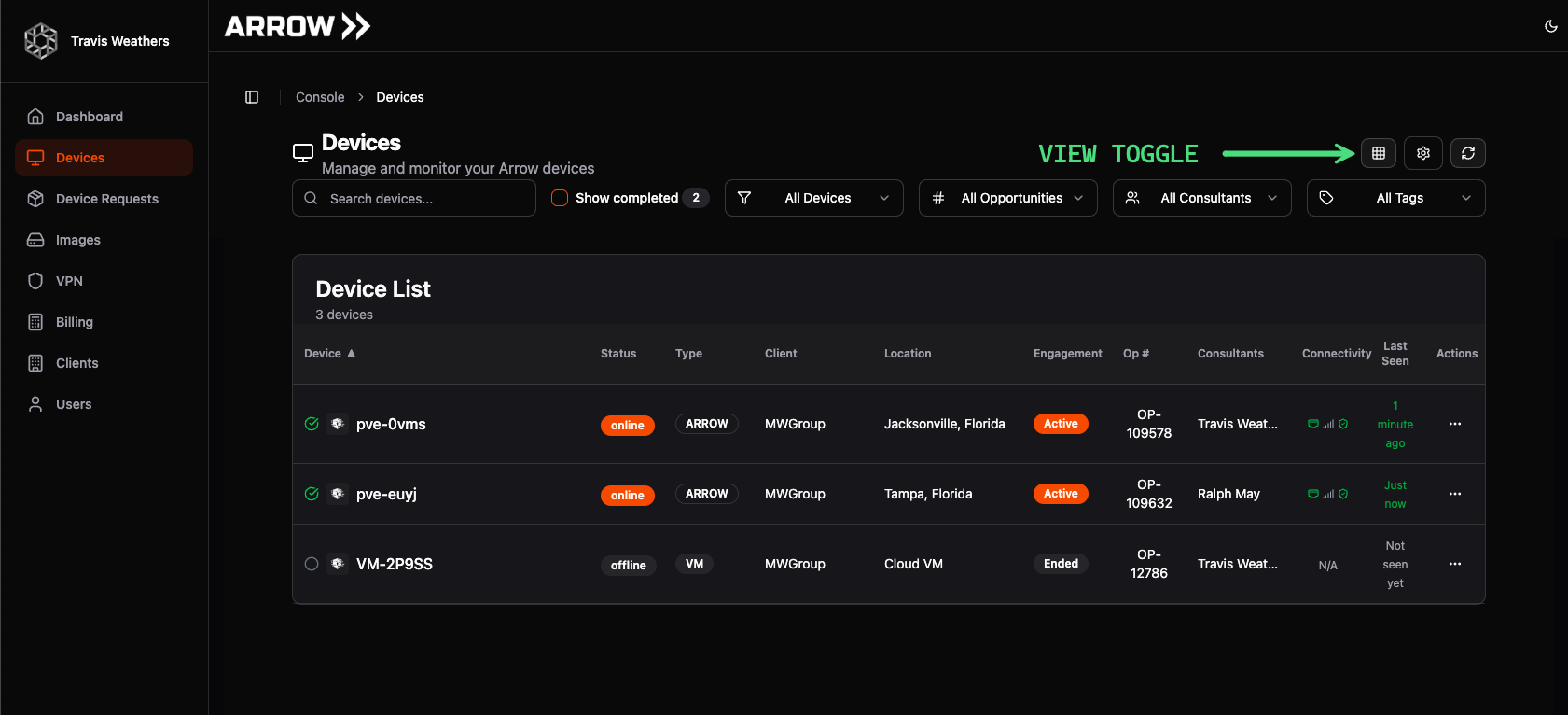 Devices List View
Device Overview Elements
Section titled “Device Overview Elements”| Element | Description |
|---|---|
| Client Logo | Added for aesthetic recognition during the client onboarding process |
| Unique Device Name | Randomly generated device/hostname set during the provisioning process |
Device Status Icons
Section titled “Device Status Icons”
| Status | Icon | Description |
|---|---|---|
| Health Monitor | Heartbeat | Indicates metrics health. Device metrics are pulled every minute - keep this in mind during troubleshooting |
| Primary Adapter | Ethernet port | Shows if the device is connected via Ethernet (primary connection) |
| Failover Adapter | Signal strength | Indicates if the device is in failover mode and connected via cellular |
| VPN Status | Shield check | Shows whether the device has a stable VPN connection |
| Virtual Machine Status | Cube | Indicates if a virtual machine is deployed and its health status |
Device Actions Menu
Section titled “Device Actions Menu”The ellipsis menu provides access to the following actions:
| Action | Description |
|---|---|
| View Details | Open the device details view to see full metrics, interfaces, and recent activity |
| Access Arrow Manager | Launch the ARROW Manager UI for live administration on the device |
| Edit Tags | Add, remove, or rename tags used for search and grouping |
| Edit Request Details | Update the originating device request (notes, dates, consultants) |
| Copy Arrow Password | Copy the ARROW Manager/user password to your clipboard |
| Copy Root Password | Copy the device’s root credential to your clipboard |
| Request VPN Setup Token | Generate a one-time VPN setup token |
Device & Engagement Information
Section titled “Device & Engagement Information”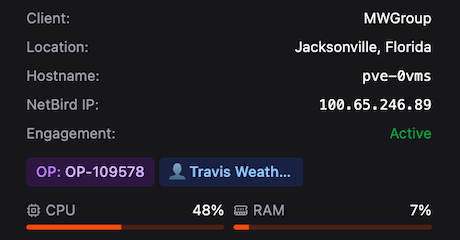
| Field | Description |
|---|---|
| Client | The corresponding client organization |
| Location | Location data pulled from various sources including IP geolocation and shipping address |
| Hostname | Matches the Unique Device Name. Format: PVE (Proxmox Virtual Environment) + four-digit string. Full VPN hostname: hostname.arrow.local |
| NetBird IP | IP address assigned by the NetBird VPN orchestrator |
| Engagement Status | Status driven by dates defined in the request. View completed devices using Show completed in the Devices page header |
| OP & Consultants | Optional organizational data such as project numbers and assigned consultants |
| CPU & RAM | Current load statistics and resource usage for the device |
Virtual Machine Field
Section titled “Virtual Machine Field”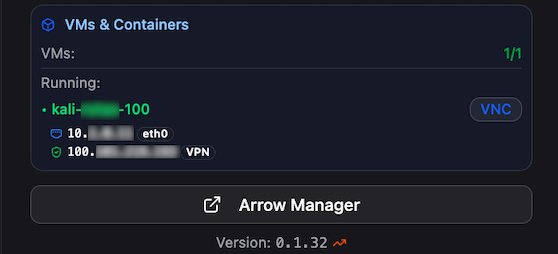
| Field | Description |
|---|---|
| VMs & Containers | Details for running virtual machines including hostname, internal IP, and VPN IP. Includes direct link to NoVNC HTML5 interface (fast, auto-scalable, with copy/paste support) |
| ARROW Manager Button | Opens the ARROW Manager application running on the physical device |
ARROW Manager - Device Setup
Section titled “ARROW Manager - Device Setup”To set up a physical device for testing, click on the ARROW Manager button in the device card. This will launch a new browser tab that connects to the ARROW Manager application running on the device. This dashboard is available via the VPN connection (Ethernet or Cellular) and via the WiFi Hotspot for client configuration. To log in to the dashboard, click the Login to Dashboard button with the following credentials:
- Username: [email protected]
- Password: ARROW Password supplied in the device card (Action Menu)
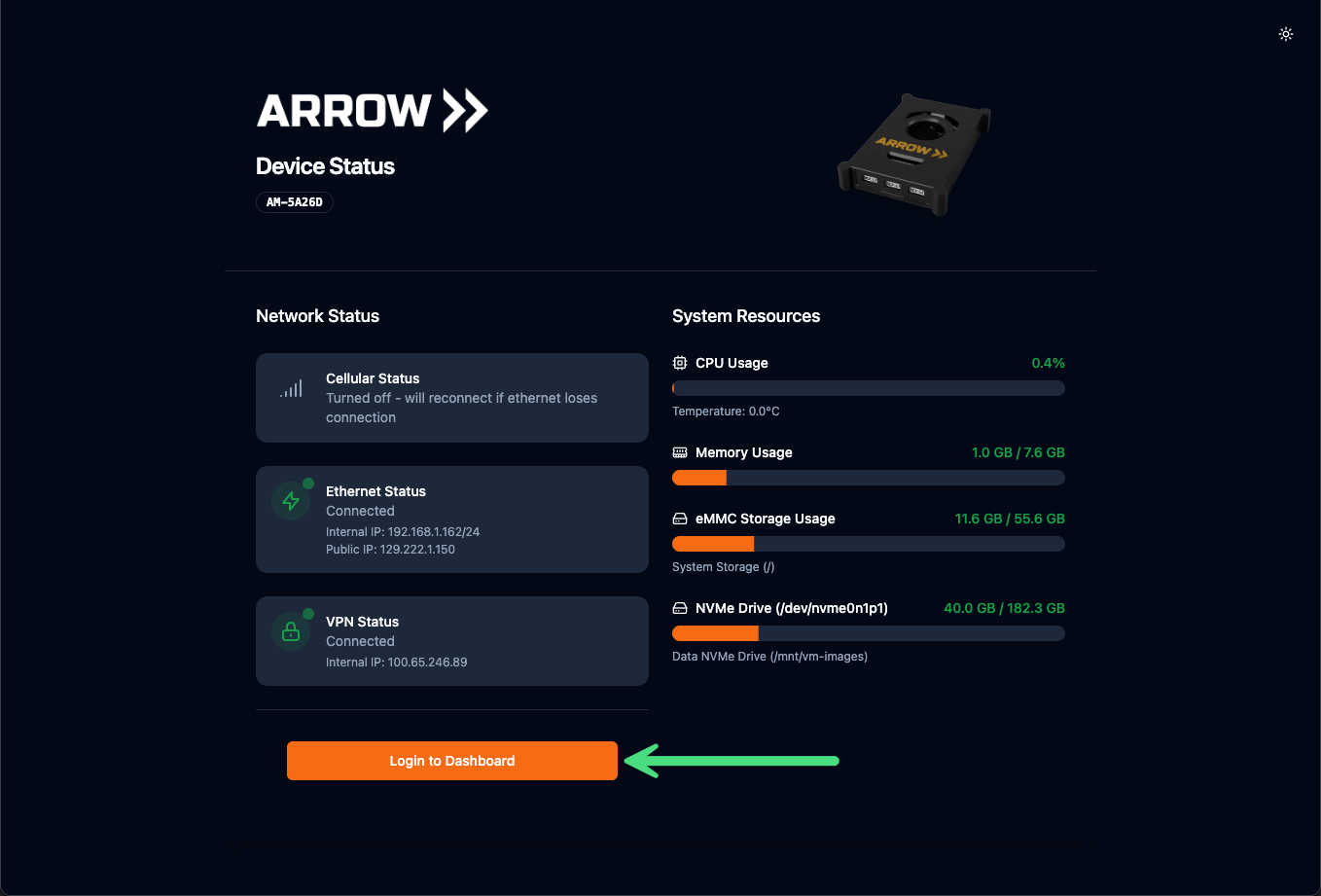 ARROW Manager Dashboard Login Screen
To get started with testing you need to do the following:
- Set a LUKS Encryption Key which will encrypt a portion of the NVMe drive
- Deploy a Virtual Machine from the AppLibrary
- (Optional) Attach any USB devices (e.g., wireless cards) to the virtual machine
Setting a Static IP Address (Physical Device)
Section titled “Setting a Static IP Address (Physical Device)”We always recommend having your client assign a Static IP address via DHCP issuance within their networking equipment. However, you or your client can manually assign a static IP address by navigating to the Network Settings page, selecting the Static IP radio button, and supplying the desired values. No reboot is required as the arrow-network-manager service will detect the changes and will automatically attempt to bring up the VPN connection on the primary interface (Ethernet). If the Static IP address details are entered incorrectly or there are security controls in place blocking egress or the VPN Orchestrator host, the device will fail back over to cellular or the WiFi Hotspot.
IMPORTANT
Please do not make direct edits to/etc/network/interfaceswithout first consulting the ARROW support team. All network configurations should be performed exclusively via the Settings tab within the ARROW Manager portal.
The following is a sample output of the /etc/network/interfaces file when the Proxmox device is set to DHCP and Static IP addressing as well as the standard contents of the wwan0 (cellular modem) and wlo1 (wireless hotspot) files. There should never be a use case where the wwan0 and wlo1 files need modification.
Static IP Configuration - /etc/network/interfaces
# <-SNIPPED FOR BREVITY->
auto loiface lo inet loopback
auto enp2s0iface enp2s0 inet manual
iface wlo1 inet manual
iface wlx00c0cab2f4b8 inet manual
iface wwan0 inet manual
auto vmbr0iface vmbr0 inet static  address 192.168.1.55/24  gateway 192.168.1.1  bridge-ports enp2s0  bridge-stp off  bridge-fd 0  bridge-vlan-aware yes  bridge-vids 2-4094#Managed by Arrow Manager
source /etc/network/interfaces.d/*
DHCP Configuration - /etc/network/interfaces
# <-SNIPPED FOR BREVITY->
auto loiface lo inet loopback
auto enp2s0iface enp2s0 inet manual
iface wlo1 inet manual
iface wlx00c0cab2f4b8 inet manual
iface wwan0 inet manual
auto vmbr0iface vmbr0 inet dhcp  bridge-ports enp2s0  bridge-stp off  bridge-fd 0  bridge-vlan-aware yes  bridge-vids 2-4094#Managed by Arrow Manager
source /etc/network/interfaces.d/*
Cellular Configuration - /etc/network/interfaces.d/wwan0
# <-SNIPPED FOR BREVITY->
# WWAN0 LTE interface configurationallow-hotplug wwan0iface wwan0 inet manual    dns-nameservers 8.8.8.8 8.8.4.4 1.1.1.1
    # Disable IPv6 on this interface    post-up echo 1 > /proc/sys/net/ipv6/conf/wwan0/disable_ipv6
Hotspot Configuration - /etc/network/interfaces.d/wlo1
# <-SNIPPED FOR BREVITY->
auto wlo1iface wlo1 inet static address 10.123.45.1 netmask 255.255.255.0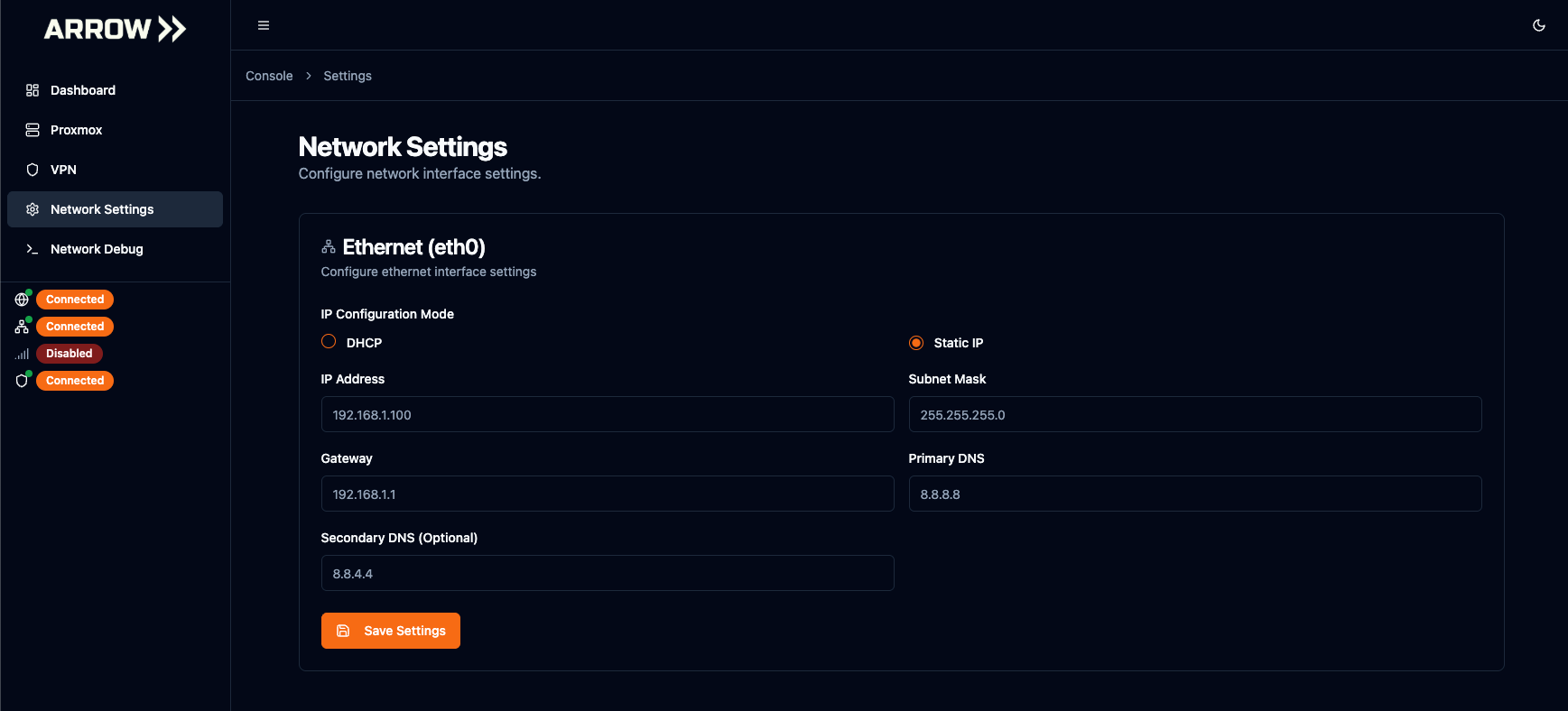 Static IP Assignment - Physical Device
Setting up LUKS Encryption
Section titled “Setting up LUKS Encryption”Navigate to the Proxmox tab inside the ARROW Manager application. You will see a message stating “Encrypted Storage Setup Required”. Click on the Setup Encryption button, supply an encryption key that aligns with your organization’s policy, and click the Create Encrypted Storage button. It will take approximately 15-30 seconds for the encryption process to complete.
Important
Ensure that you store the LUKS Encryption Key in a secure method that is approved by your organization. Should the device lose power or require a reboot, you will need to enter the encryption key to restart the virtual machine. VTEM Labs does not store the key and cannot assist in data/key recovery.
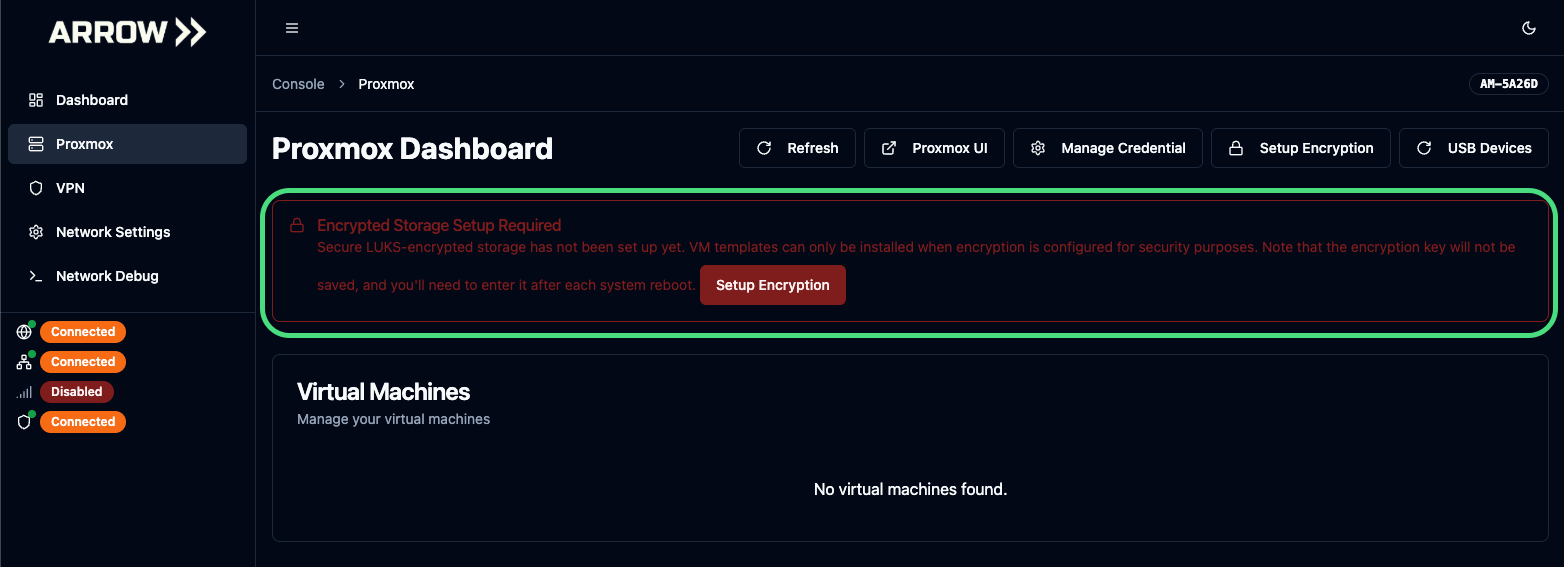 LUKS Setup Warning
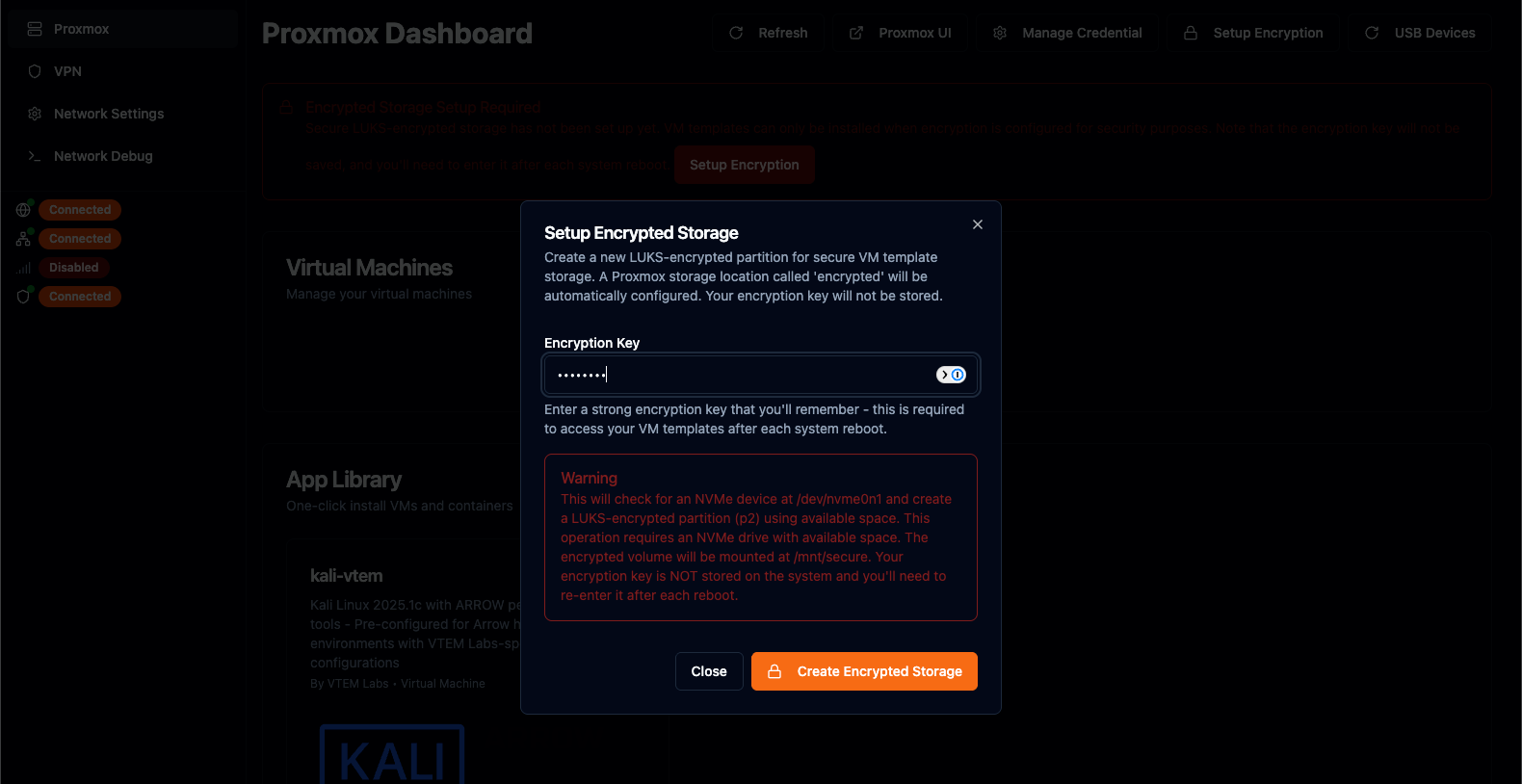 LUKS Key Setup
Once the encrypted NVMe partition has been created, you can now deploy a virtual machine.
Deploying a Virtual Machine
Section titled “Deploying a Virtual Machine”To deploy a virtual machine, select an image from the App Library and click the Deploy button. This will launch the Configure VM Deployment window. This process builds out the cloud-init configuration for when the Proxmox template file is deployed on the LUKS-encrypted partition.
Required Configuration Values:
Section titled “Required Configuration Values:”| Field | Description |
|---|---|
| Root Password | Password for the root user on the virtual machine |
| ARROW User Password | Password for the arrow user account on the virtual machine |
| VPN Setup Key | Key required to add the virtual machine to your VPN. Generate this from the Device Card on the ARROW Portal inside the (Action Menu) |
Optional Configuration Values:
Section titled “Optional Configuration Values:”| Field | Description |
|---|---|
| SSH Public Key | Enables SSH access to the ARROW and ROOT accounts without using defined passwords |
| Netbird Device Name | Custom device name that can be set in the VPN Setup menu |
| MAC Address | Custom MAC address for the virtual machine. Useful for providing clients with device MAC addresses in advance for NAC/IP address provisioning prior to device arrival |
| Static IP Configuration | Configure the virtual machine to use a static IP address |
Apply the desired settings and click the Create VM button. It will take approximately 50 seconds to fully deploy the virtual machine. If any USB devices are connected to the device, you will see the details of the device(s) and an Attach button. Attaching a device will induce a restart. The virtual machine will start sending statistics to the metrics server. However, the ARROW Portal only pulls this information every minute.
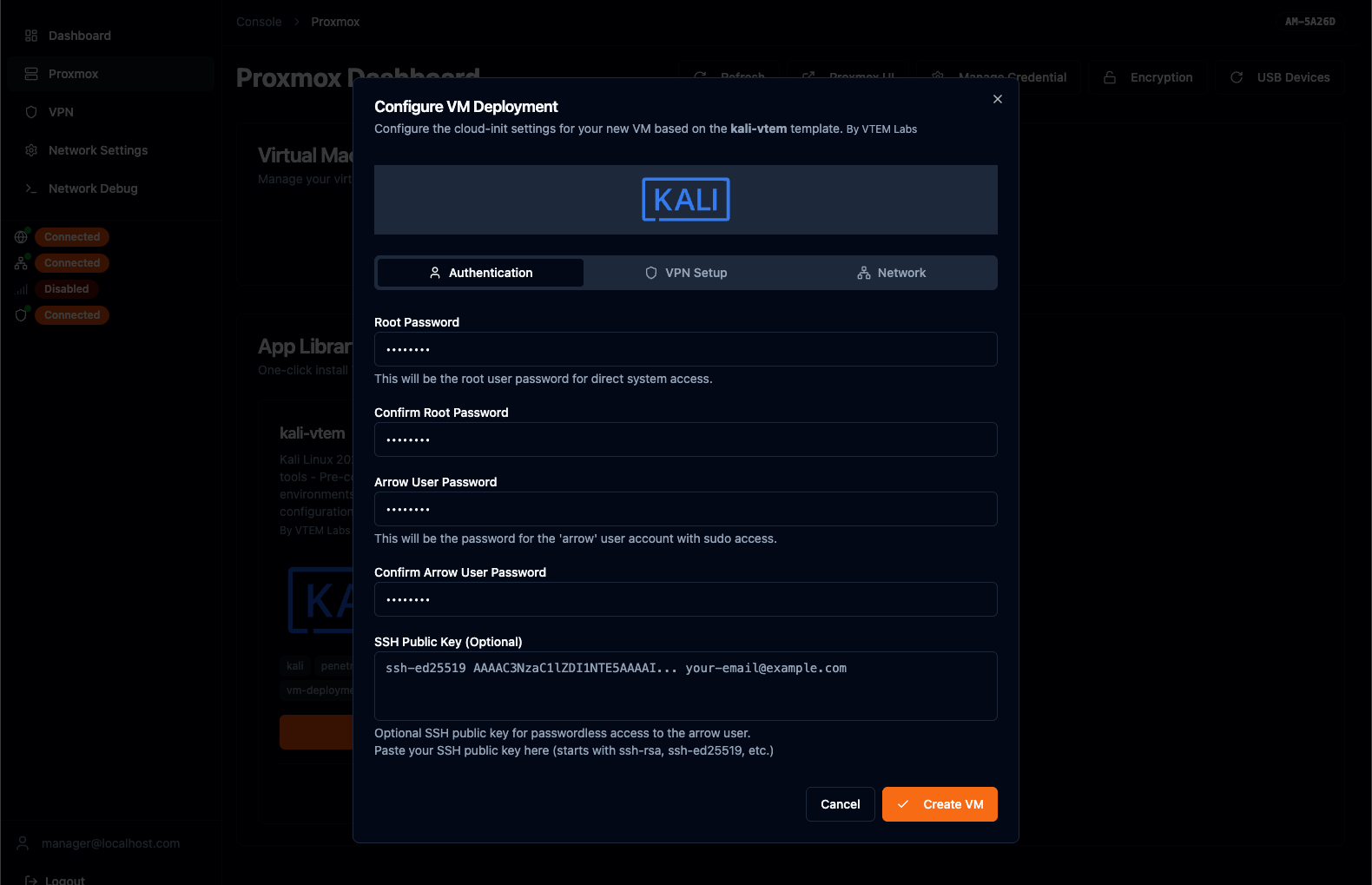 Configure VM Deployment Window
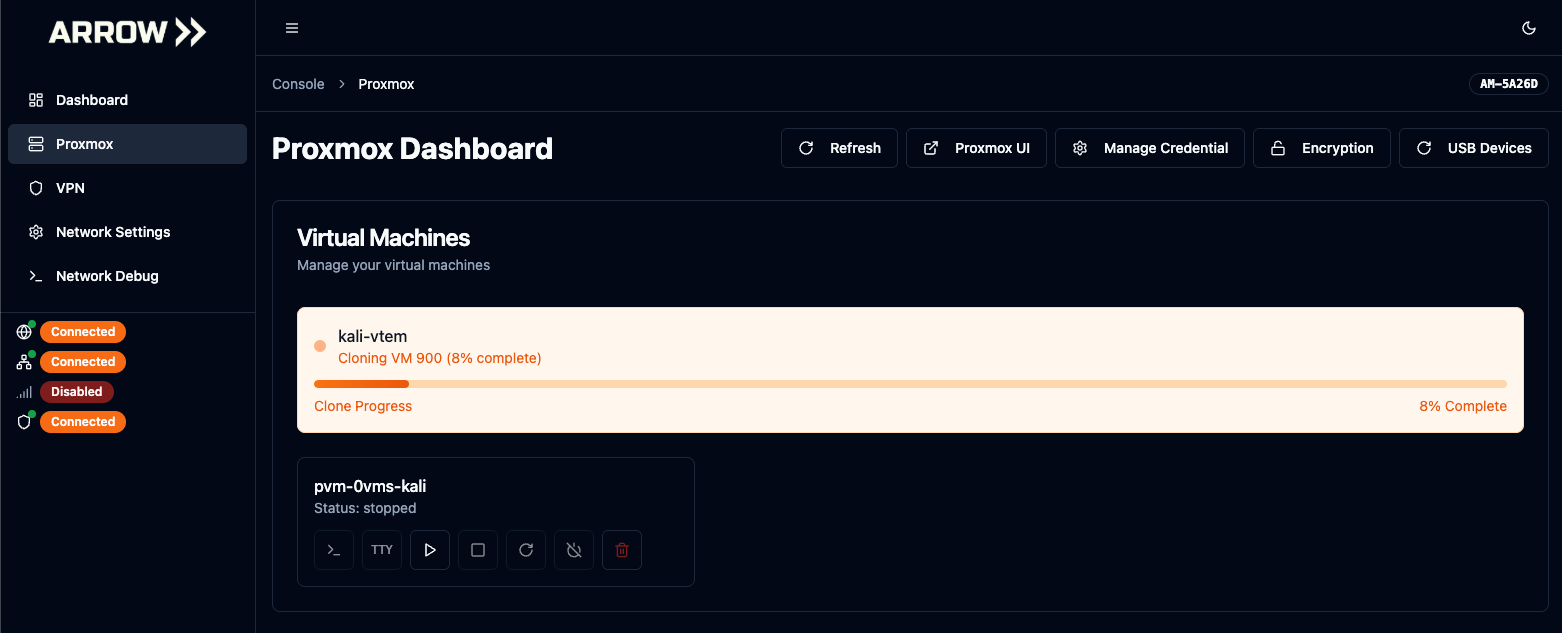 Virtual Machine Deployment Status Indicator
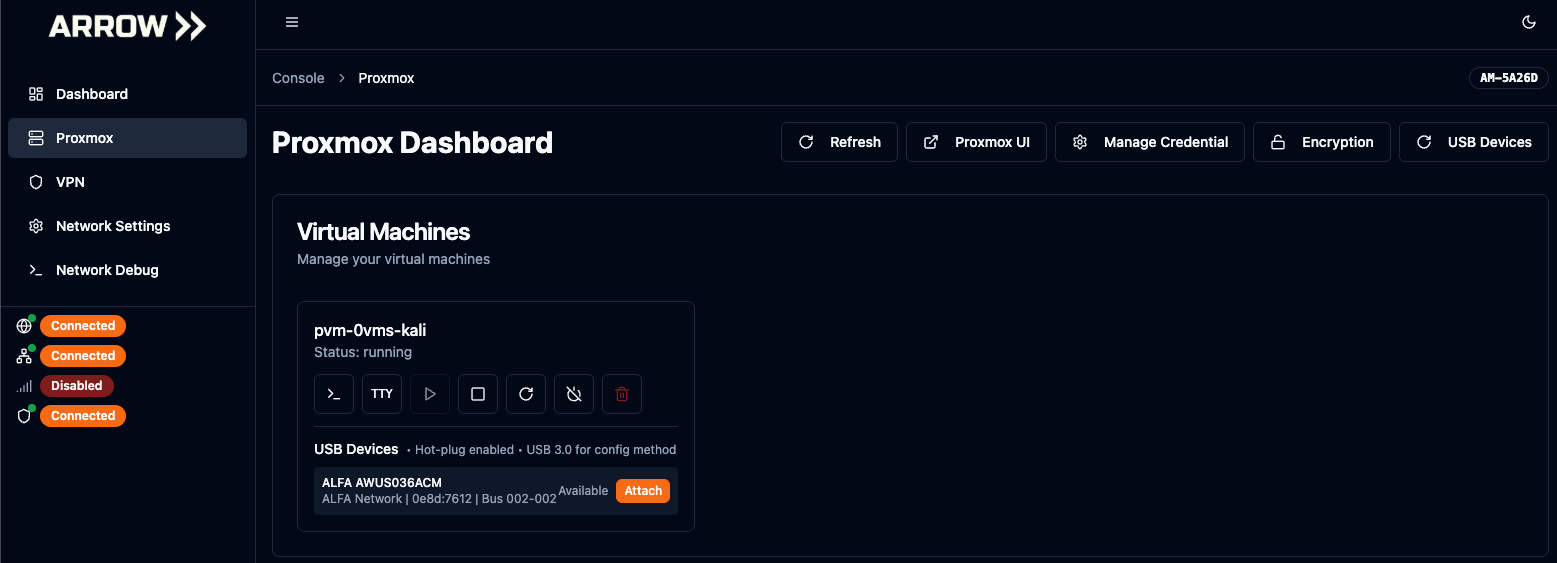 Deployed Virtual Machine w/ Wireless Card
To access the virtual machine, follow the documentation provided in the Proxmox Virtual Machines section.